
How to Generate Proxies in NodeMaven and Add Them in AdsPower 2026

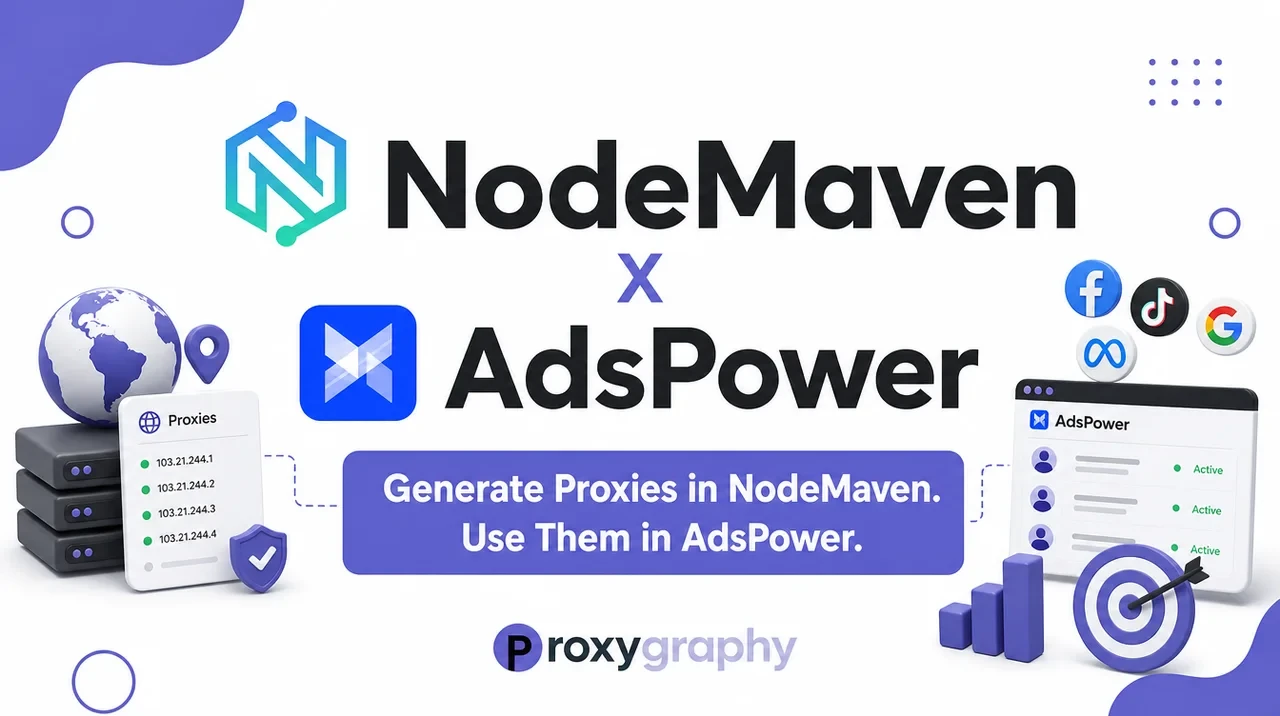
Running multiple accounts on Facebook, TikTok, Amazon, or any major platform comes down to two things: a browser that looks like a different device for each account, and an IP address that cannot be linked to your other profiles.
AdsPower solves the browser problem. It creates fully isolated browser profiles — each with its own fingerprint, cookies, and storage — so every account looks like it belongs to a separate person on a separate device.
NodeMaven solves the IP problem. Built by the founders of Multilogin, NodeMaven filters every proxy through a proprietary quality algorithm before assignment. The result is a significantly cleaner pool — 30M+ residential IPs, 250K+ mobile IPs, and static ISP proxies — that hold sessions longer and clear anti-fraud checks more reliably than industry-average providers.
This guide walks you through the full process: generating proxy credentials inside NodeMaven's dashboard and entering them into an AdsPower browser profile, step by step.
Quick Setup Checklist
Use this as your reference before and during setup:
- Create a NodeMaven account and purchase a plan
- Apply your discount code at checkout
- Log in to the NodeMaven dashboard
- Open the Proxy Setup section
- Choose proxy type: Residential, Mobile, or ISP
- Set your target country (and state/city if needed)
- Choose session type: Sticky or Rotating
- Choose protocol: HTTP or SOCKS5
- Enable the IP Quality Filter
- Copy your generated gateway, port, username, and password
- Open AdsPower and create a new browser profile
- Paste NodeMaven credentials into the Proxy section
- Click "Check Proxy" and confirm the IP appears correctly
- Save the profile and open it
What You Need Before Starting
Before you begin, have the following ready:
- A NodeMaven account with an active plan — NodeMaven offers a $3.50 trial with 750 MB of bandwidth, usable on residential and mobile proxies. Plans start at $8.50/month for 2 GB. Read our full NodeMaven review for a breakdown of all plans and proxy types.
- An AdsPower account — AdsPower's free plan supports up to 2 browser profiles, which is enough to follow this guide. You can get started at AdsPower or read our AdsPower review for full feature details.
35% Off NodeMaven Residential & Mobile Proxies
Save 35% on any NodeMaven residential or mobile proxy plan. Apply code PROXYGRAPHY35 at checkout — filtered IPs, sticky sessions up to 24h, and rollover traffic included.
40% Off NodeMaven ISP (Static) Proxies
Use code PROXYGRAPHY40 at NodeMaven checkout for 40% off ISP static proxies. Static residential IPs with a quality guarantee — ideal for stable AdsPower profiles.

Exclusive 5% Off AdsPower for ProxyGraphy Readers
Get an extra 5% off any AdsPower paid plan with exclusive code ProxyGraphy. Works on Base, Pro, and Enterprise plans.
Part 1: Getting Your NodeMaven Account and Proxies
Step 1: Sign Up for NodeMaven
Go to nodemaven.com and click "Try for $3.50" or "Sign Up." The registration form asks for your email and password only — no payment information is required upfront for the trial.
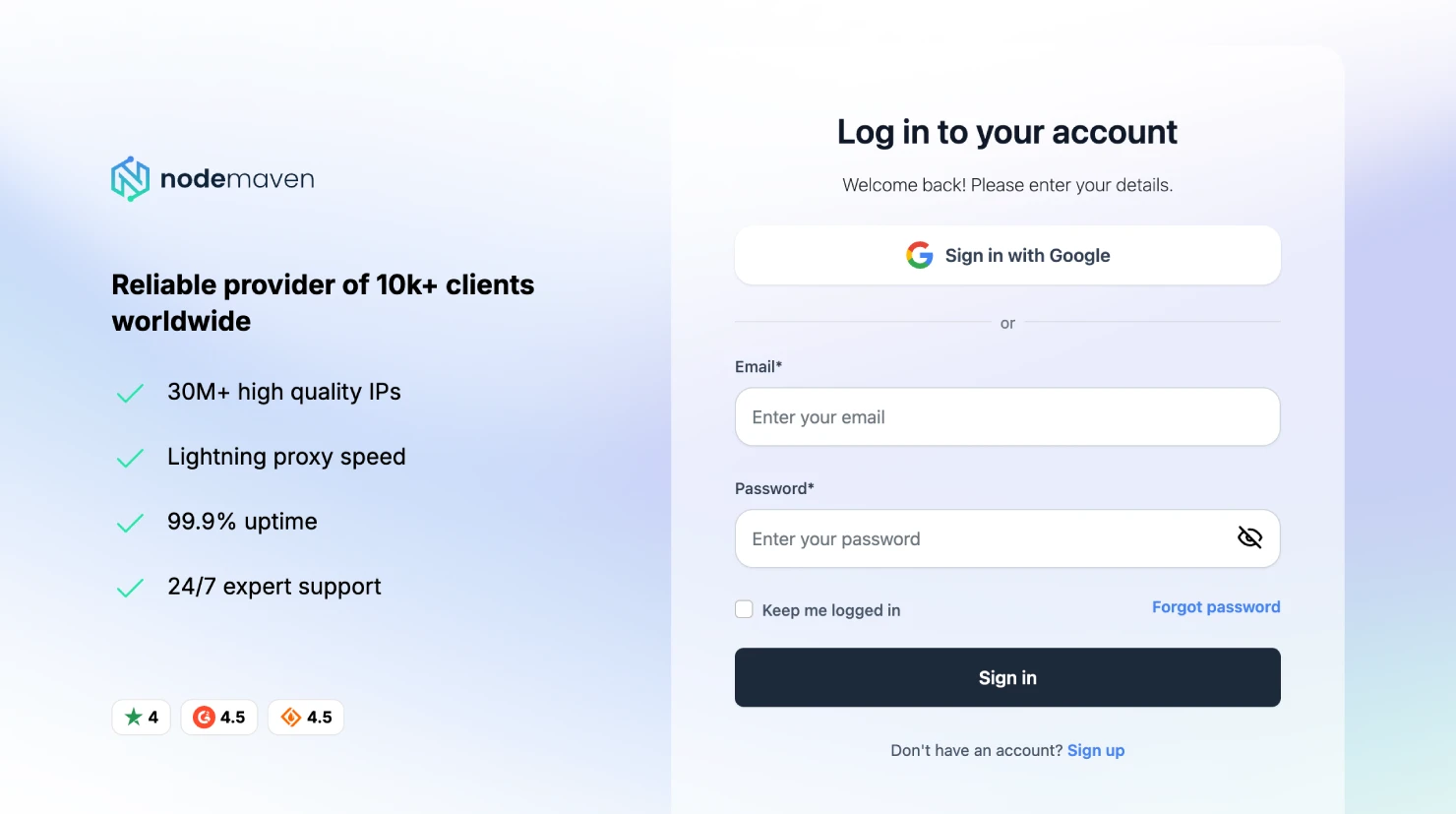
After submitting, verify your email address. Once confirmed, the platform takes you directly to the dashboard. From there, you can start a trial or navigate to the Pricing section to select a full plan.
Step 2: Choose Your Proxy Type and Plan
NodeMaven offers three proxy types. Choose the one that fits your AdsPower use case:
| Proxy Type | Best For | Starting Price |
|---|---|---|
| Residential | General multi-accounting, social media, e-commerce | $2.20/GB |
| Mobile | Platforms that prefer carrier IPs (TikTok, Instagram) | $2.20/GB |
| ISP (Static) | Long-term profiles, stable sessions, fewer IP changes | $2.99/IP/month |
For most AdsPower setups, ISP proxies give the best account longevity because the IP does not change between sessions. Residential or mobile proxies with sticky sessions (up to 24 hours) are a solid alternative if you want a rotating pool.
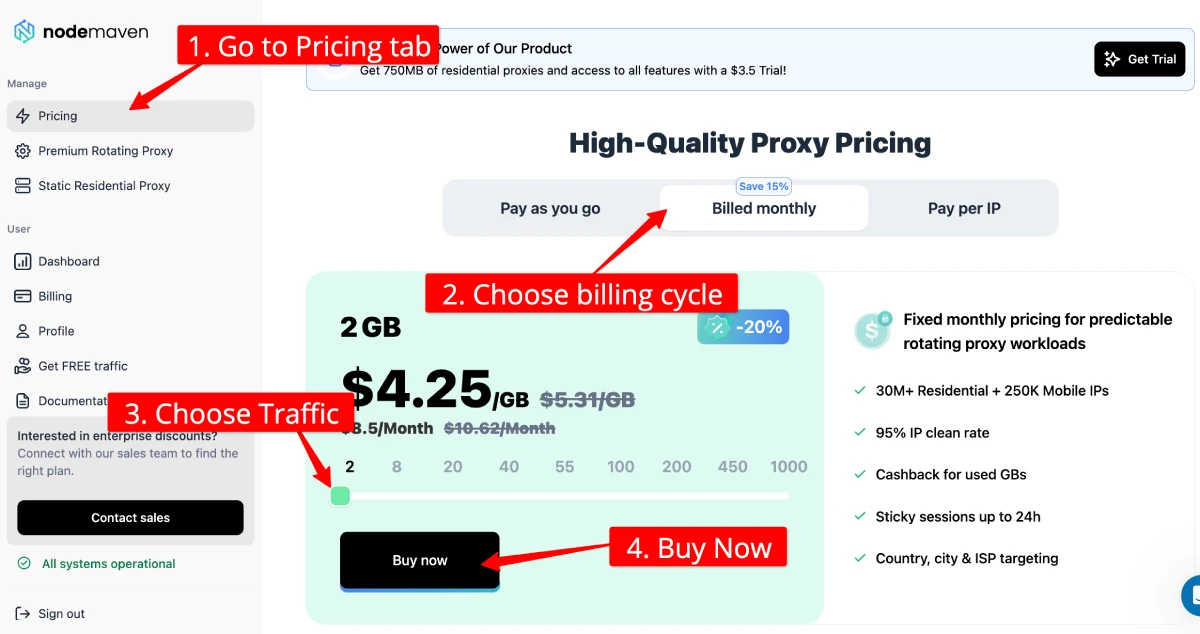
Step 3: Apply Your Discount Code at Checkout
On the checkout page, enter your coupon code before completing the payment:
- PROXYGRAPHY35 — 35% off Residential and Mobile proxy plans
- PROXYGRAPHY40 — 40% off ISP (Static) proxy plans
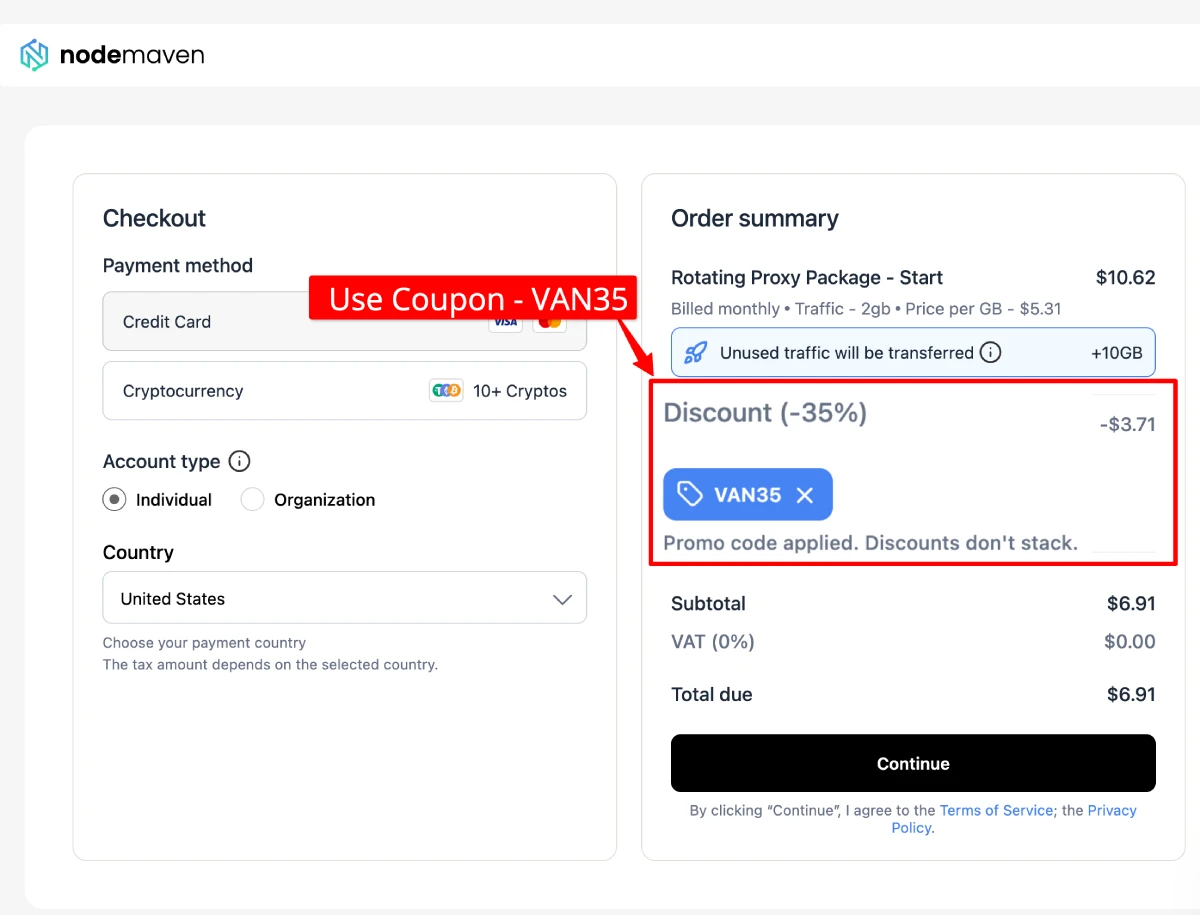
Enter the code in the coupon field and click "Apply." The discounted price appears immediately. Complete the payment to activate your plan.
Part 2: Generating Proxy Credentials in NodeMaven
Step 4: Log In to the NodeMaven Dashboard
After purchase, log in at dashboard.nodemaven.com. The main dashboard shows your remaining bandwidth, subscription status, and usage statistics at a glance.
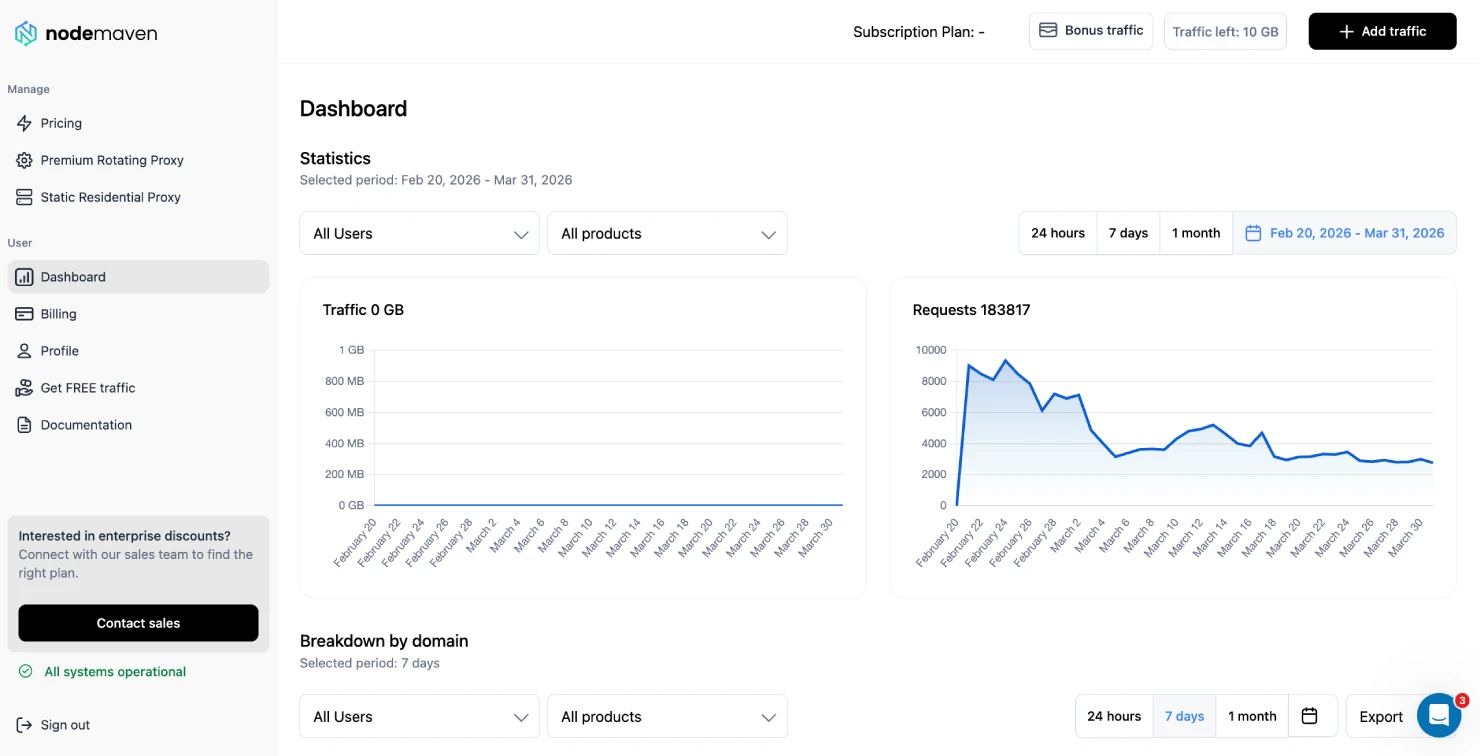
The left-side navigation panel includes: Pricing, Proxy Setup, Billing, Profile, and Documentation. For generating proxy credentials, click "Proxy Setup."
Step 5: Open the Proxy Setup Section
The Proxy Setup screen is where you configure every parameter for your proxy connection. All your credential details are generated here based on the options you select.
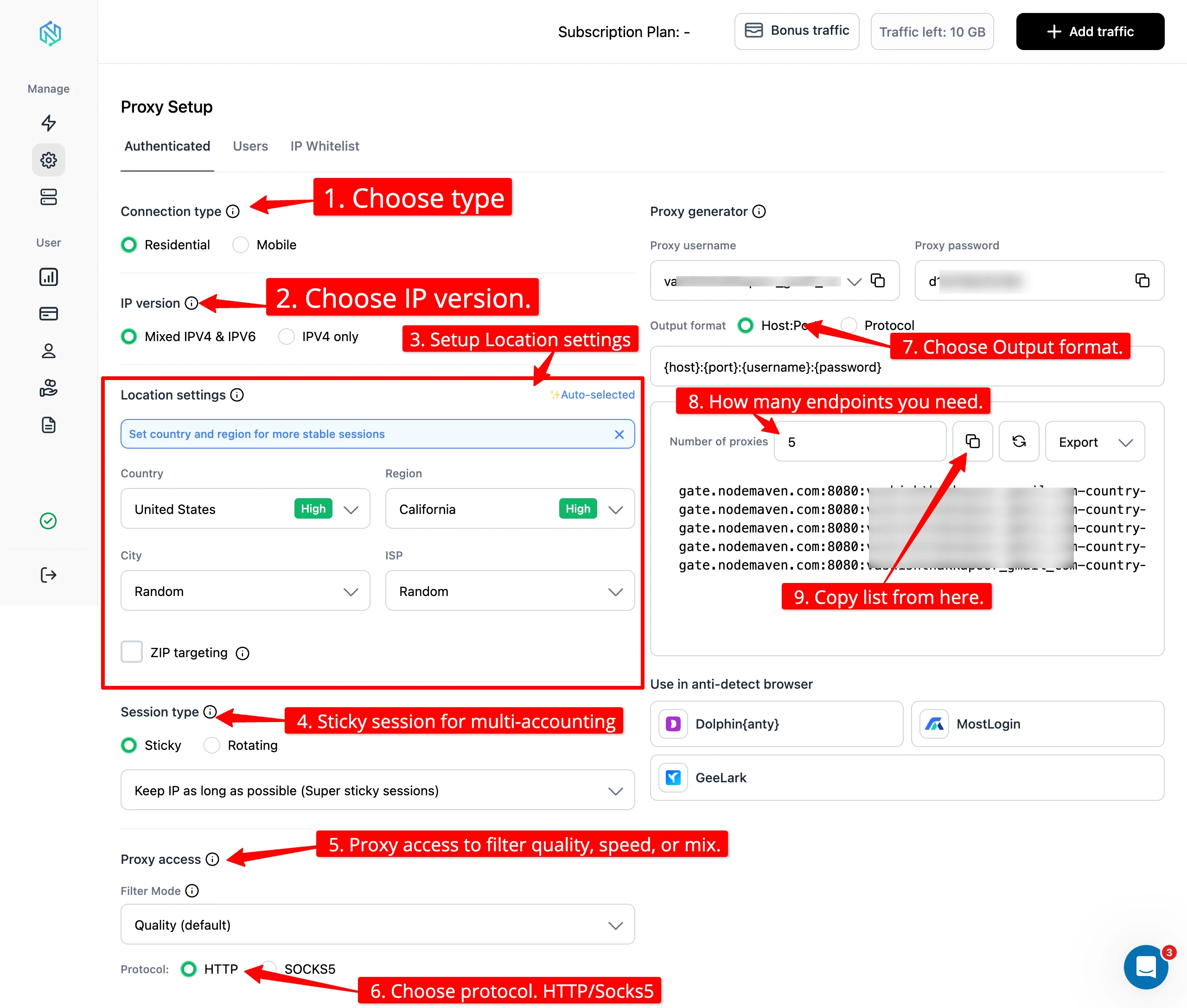
You will configure four things on this screen: proxy type, location, session type, and protocol. Work through each in order.
Step 6: Select Proxy Type and Set Location
Choose the proxy type that matches what you purchased: Residential, Mobile, or ISP.
Next, set your target location. NodeMaven supports:
- Country — available for all proxy types
- State/Region — available for residential and mobile
- City — available for residential and mobile
- ZIP code — available for 150+ markets on residential
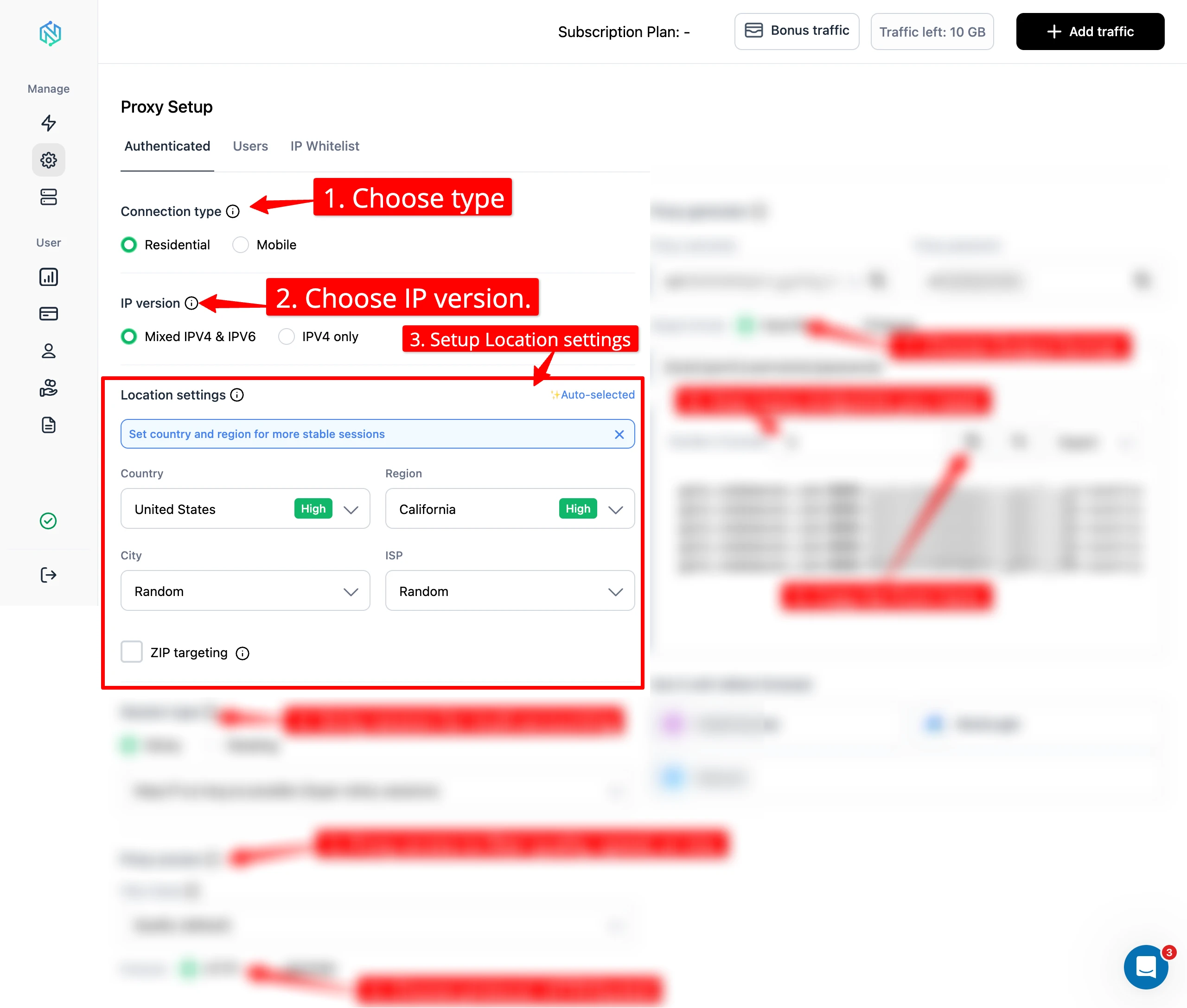
For AdsPower multi-account setups, match the proxy location to the country where the account was originally created. A US account should use a US proxy. Switching regions mid-account triggers risk signals on most platforms.
Step 7: Choose Session Type
NodeMaven offers two session modes:
- Sticky — keeps the same IP for an extended period (up to 24 hours). Best for AdsPower profiles where account consistency matters.
- Rotating — changes the IP on each new connection. Better for scraping and data collection, less suited for account management.
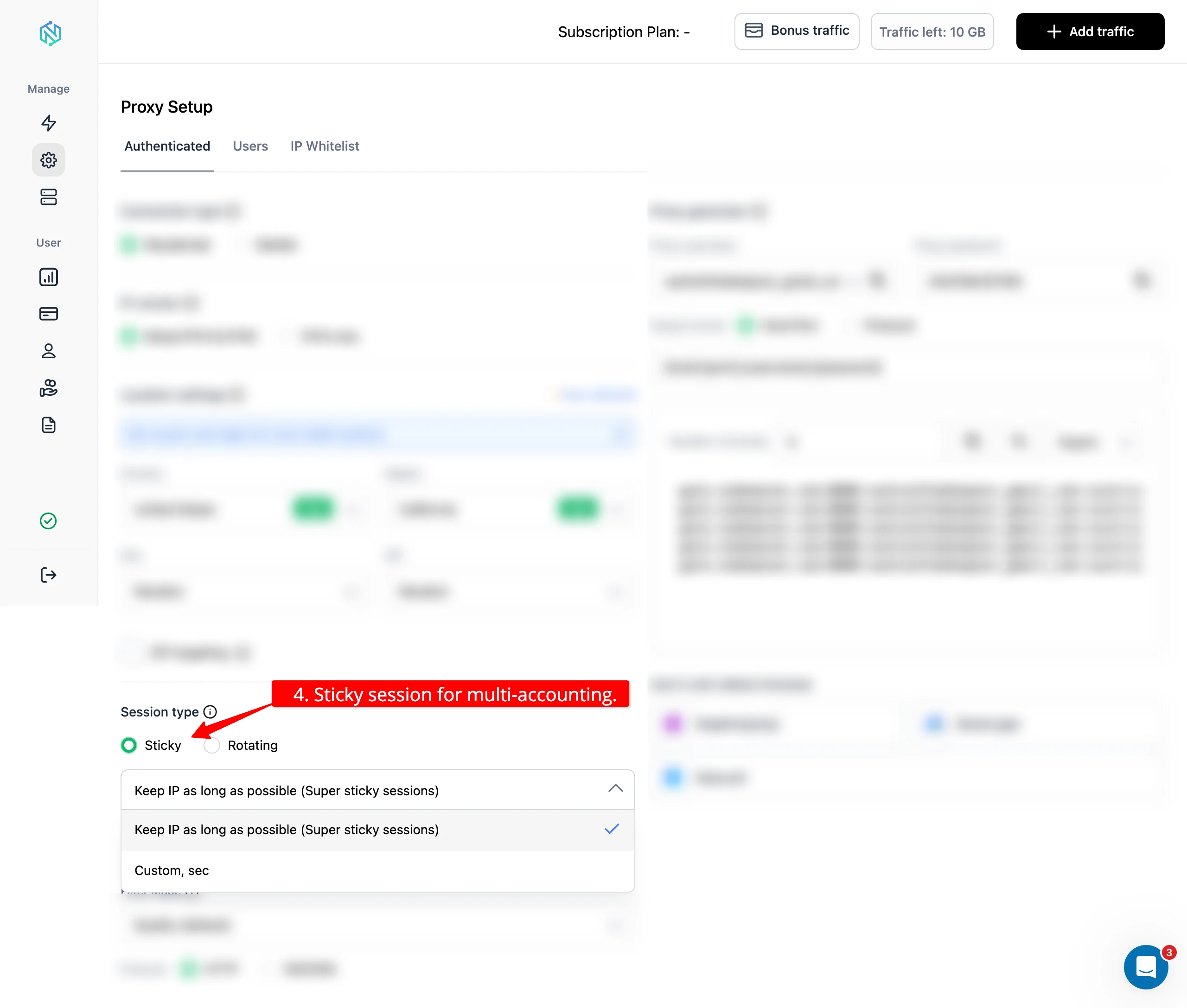
For AdsPower profiles, always select Sticky sessions. This ensures the same IP is used every time you open the profile, which is essential for keeping accounts from flagging due to location changes.
Step 8: Choose Protocol and Enable IP Quality Filter
Select your protocol: HTTP or SOCKS5. Both work with AdsPower. SOCKS5 supports UDP and handles a wider range of traffic types, but HTTP is simpler to configure and works reliably for browser-based tasks.
Below the protocol selector, you will see the IP Quality Filter toggle. This is one of NodeMaven's standout features — it filters out flagged, burned, or low-quality IPs before they reach your session, delivering a 90–95% clean proxy rate compared to the industry average of 20–40%.
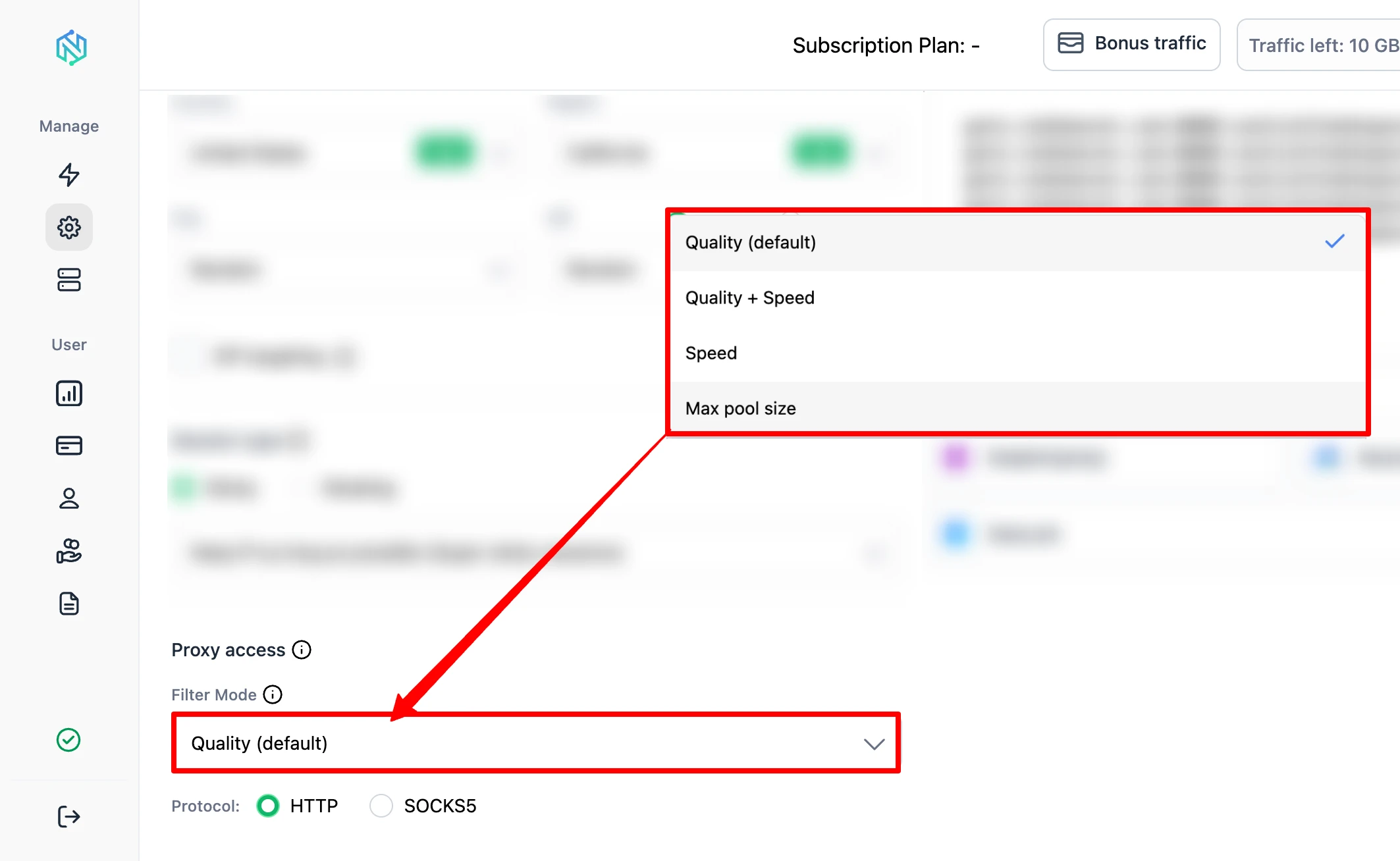
Turn the IP Quality Filter on. For AdsPower multi-accounting, this meaningfully reduces the risk of starting a session on a pre-flagged IP.
Step 9: Copy Your Generated Credentials
Once all options are set, the Proxy Setup screen generates your ready-to-use credentials:
- Host (the proxy gateway address)
- Port (the connection port number)
- Username (your authentication username, which encodes your targeting parameters)
- Password (your account proxy password)
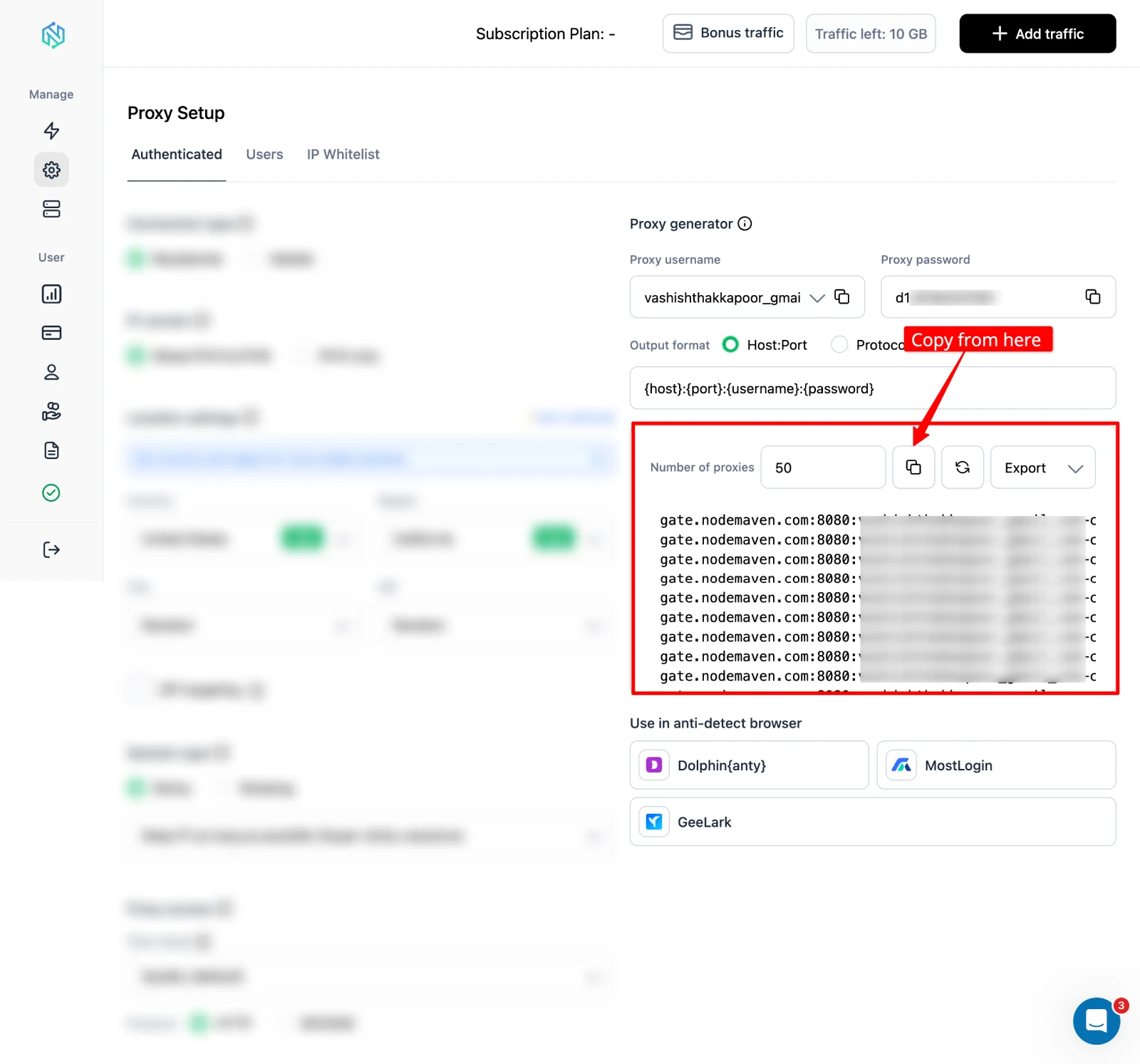
Copy these four values. You will paste them directly into AdsPower in the next part. Keep a note of which settings generated each credential if you plan to create multiple profiles — location and session type are embedded in the username for residential and mobile proxies.
Part 3: Adding NodeMaven Proxies to AdsPower
Step 10: Open AdsPower and Create a New Profile
Launch the AdsPower desktop app and click the "New Profile" button in the top-right area of the main dashboard. This opens the profile creation window.
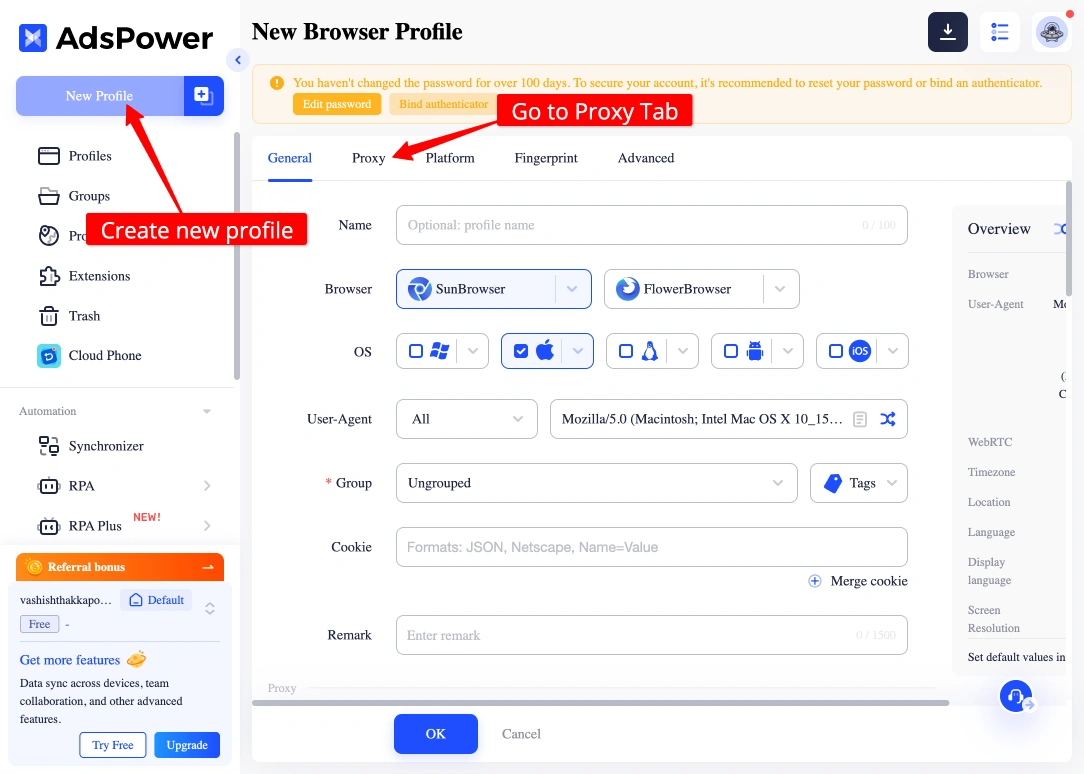
Give the profile a descriptive name — something that maps to the account and proxy (e.g., "Instagram US-01 — NodeMaven Resi"). This helps you track which proxy is assigned to which account as you scale.
Step 11: Find the Proxy Section in Profile Settings
In the profile creation window, scroll down to the "Proxy" section. By default, this may be set to "No Proxy" or "Custom."
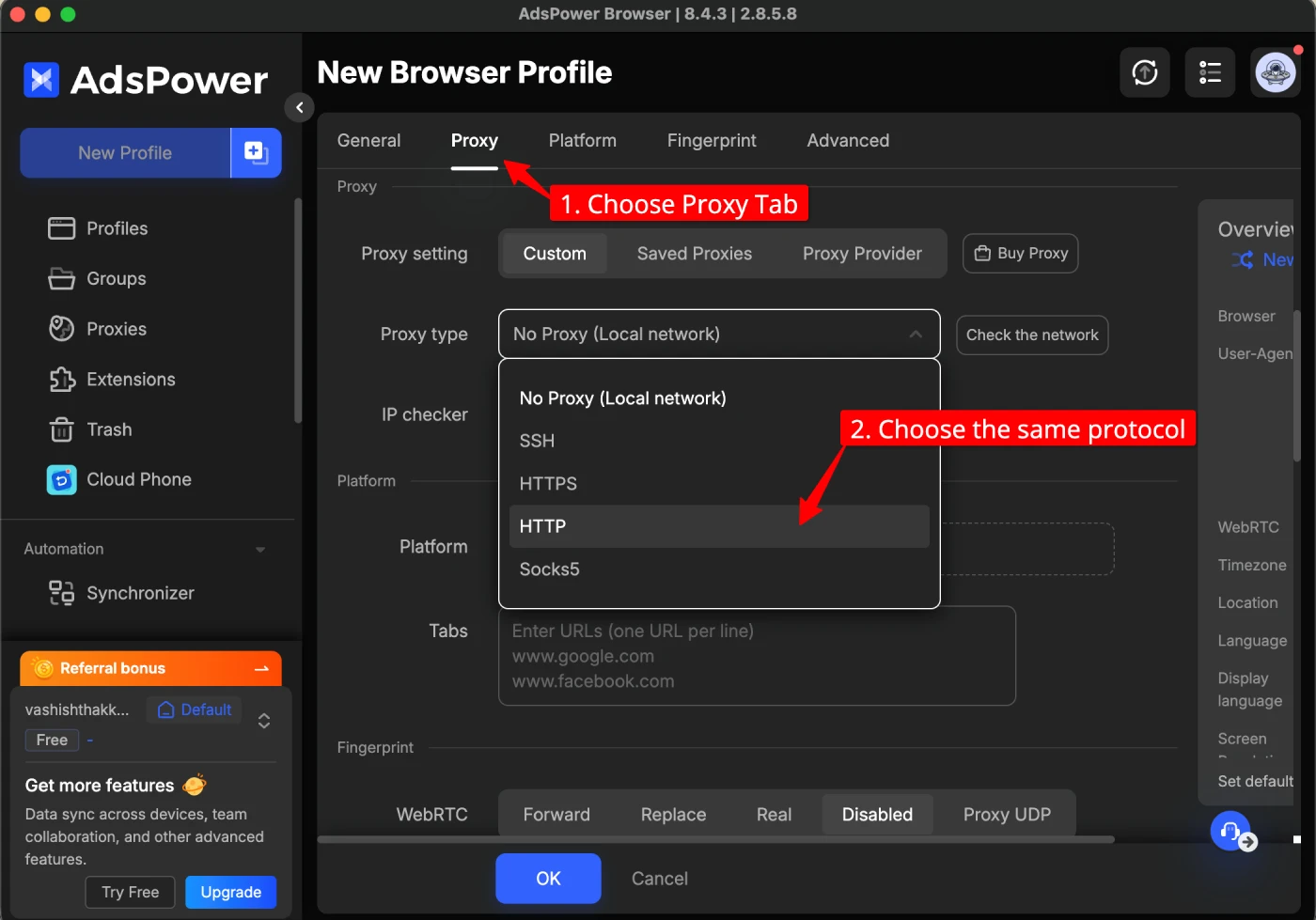
Click the proxy type dropdown. You need to switch it to use your NodeMaven credentials. Select HTTP or SOCKS5 — whichever protocol you chose in NodeMaven's Proxy Setup screen.
Step 12: Enter Your NodeMaven Credentials
Fill in the four fields using the credentials from NodeMaven's Proxy Setup screen:
- Proxy Host: the gateway address from NodeMaven
- Proxy Port: the port number from NodeMaven
- Proxy Username: your generated username (includes location and session parameters)
- Proxy Password: your proxy account password
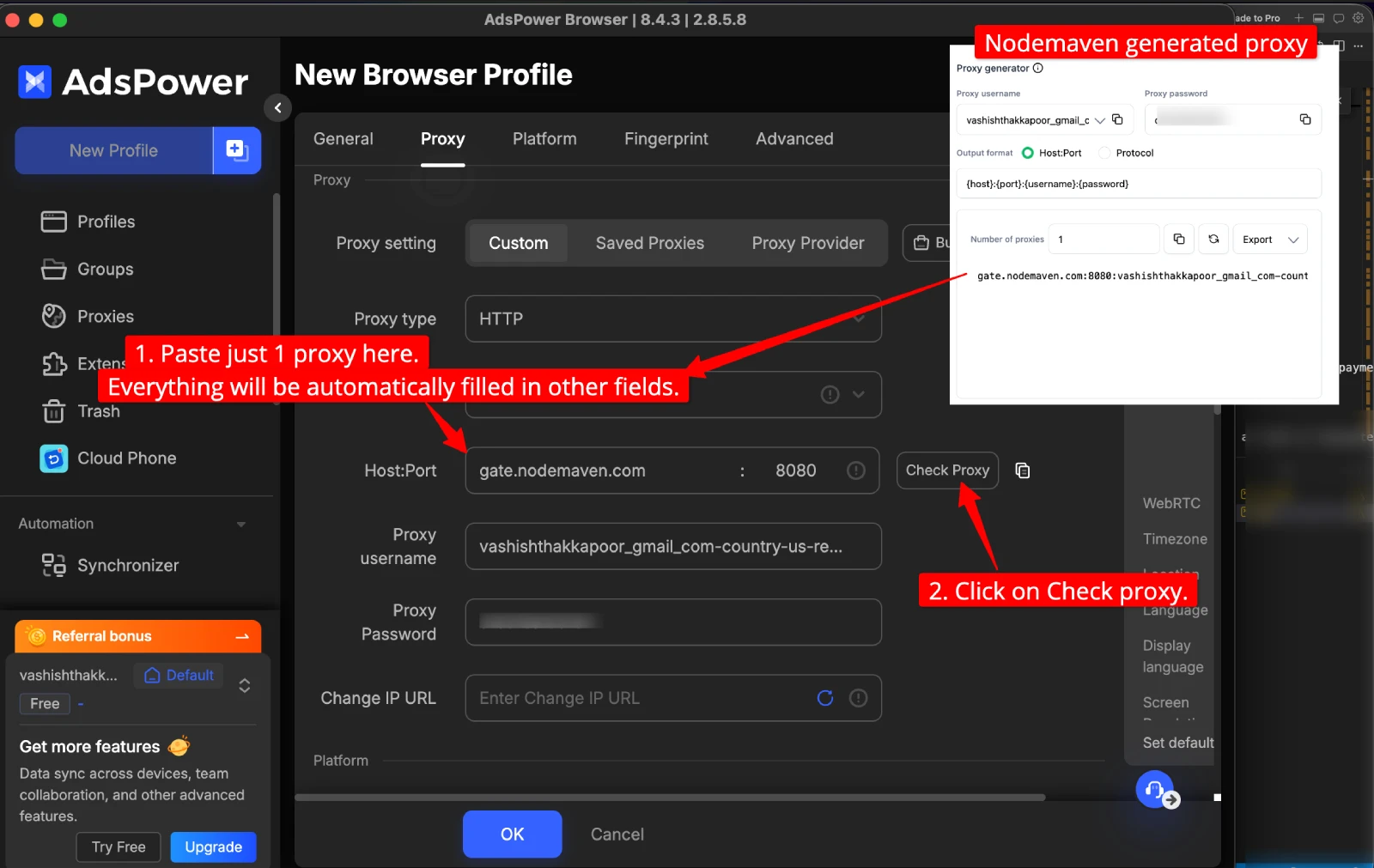
Paste each value carefully — a single extra space or missing character will cause the proxy check to fail. Do not retype credentials manually.
Step 13: Click "Check Proxy" to Verify
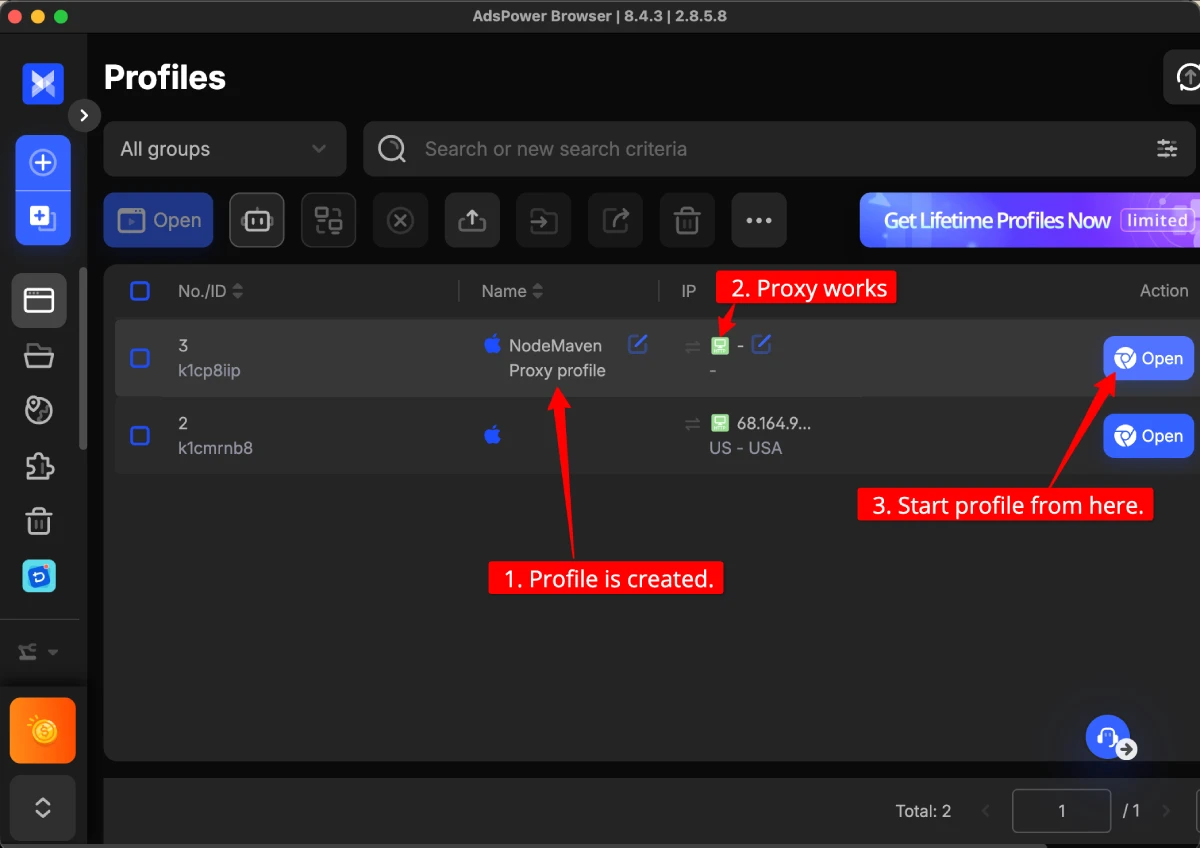
Before saving the profile, click the "Check Proxy" button. AdsPower will connect through the proxy and show the detected IP address, country, and ISP.
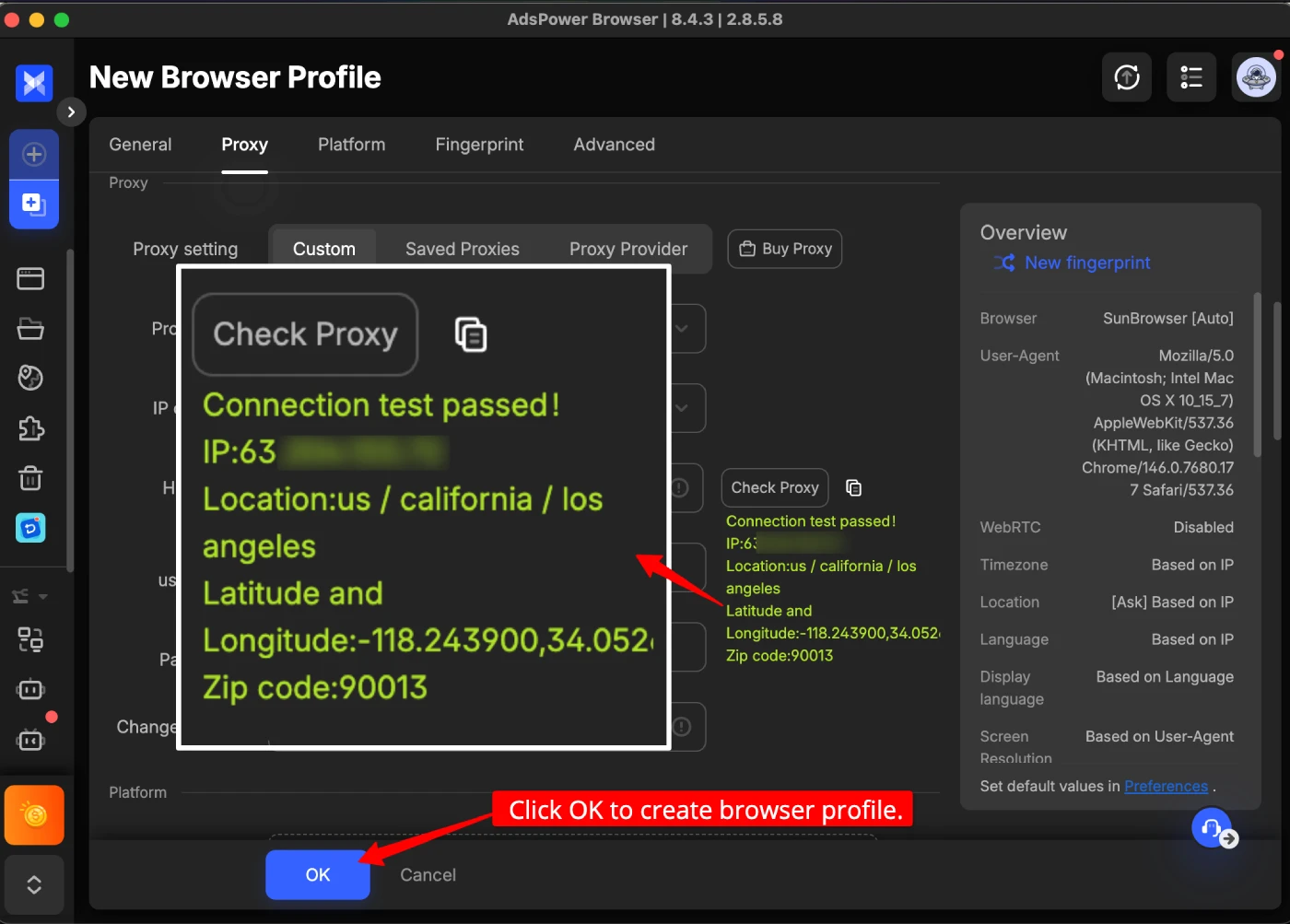
A green status means the proxy is working correctly. You should see a residential, mobile, or ISP IP address from the country you targeted in NodeMaven — not your real IP. If the check fails, see the Troubleshooting section below.
Step 14: Save the Profile and Open It
Click "Save" to finalize the profile. Back on the main AdsPower dashboard, find the new profile and click "Open" to launch the browser window.
The browser that opens is routing all traffic through your NodeMaven proxy. Any account you log into from this window uses that IP exclusively — the same IP every time you reopen the profile with sticky sessions.
Step 15: Repeat for Each Additional Profile
For each new AdsPower profile, return to NodeMaven's Proxy Setup and generate a fresh set of credentials. Change the session seed or regenerate to ensure each profile gets a unique IP.
The target is a strict 1:1 ratio — one unique IP per AdsPower profile, never shared between two profiles. If two profiles share the same IP, any platform that logs IP addresses can link those accounts together.
Best Practices for NodeMaven + AdsPower
- Use sticky sessions for account management. Rotating proxies are great for scraping but bad for accounts — a new IP on every connection looks like suspicious location hopping to platform fraud detection.
- Match proxy location to account history. If an account was registered in Germany, assign a German NodeMaven proxy. Sudden country changes trigger manual reviews on most platforms.
- Keep the IP Quality Filter on. The performance cost is negligible, and starting a session on a clean IP is far cheaper than losing an account to a pre-burned address.
- Assign ISP proxies for your highest-value accounts. Static ISP IPs with consistent ISP attribution are harder to flag than rotating residential IPs. Use them for accounts that drive the most revenue.
- Disable WebRTC in each AdsPower profile. Go to profile settings → Fingerprint → WebRTC and set it to "Disabled." WebRTC can leak your real IP even through a correctly configured proxy.
- Never log into two accounts from the same AdsPower profile. Platform cookies and session data inside a profile can create cross-account links if you switch accounts within one browser window.
- Use the NodeMaven cashback program. NodeMaven returns up to 10% of used bandwidth as reusable proxy credits — this compounds over time and effectively reduces your per-GB cost on high-volume plans.
Troubleshooting Common Issues
"Proxy check failed" in AdsPower
The most common cause is a credential entry error:
- Verify the host, port, username, and password are copied exactly from NodeMaven — no trailing spaces
- Confirm the protocol in AdsPower (HTTP/SOCKS5) matches what you selected in NodeMaven
- Check that your NodeMaven plan is active and has remaining bandwidth
Connection timeout when opening the profile
Try switching the protocol in both NodeMaven and AdsPower (e.g., from HTTP to SOCKS5). Some networks block certain proxy ports. Also confirm your NodeMaven subscription has not expired.
IP check shows wrong country
Return to NodeMaven's Proxy Setup screen and regenerate credentials with the correct country selected. Verify the username reflects the new location parameters before entering them into AdsPower.
WebRTC leak detected inside the profile
Open AdsPower profile settings, find the Fingerprint or Browser configuration section, and locate WebRTC. Set it to "Disabled" or "Replace." Re-run a WebRTC leak test inside the profile to confirm it is resolved.
Account getting flagged despite correct proxy setup
If you are using the right proxy and still getting flagged, investigate:
- Fingerprint uniqueness — make sure each AdsPower profile has distinct browser fingerprint settings (canvas, WebGL, fonts, timezone), not identical defaults
- Account warmup — new accounts that jump into high-volume actions immediately get flagged more often. Warm up each profile over several days with natural browsing first
- Behavioral patterns — platforms also flag identical activity patterns across accounts (same posting time, same content cadence). Vary behavior between profiles
NodeMaven Discount Codes Summary
Save 35% on Residential & Mobile Proxies
Apply code PROXYGRAPHY35 at checkout for 35% off all NodeMaven residential and mobile proxy plans. Includes IP quality filter, sticky sessions, and traffic rollover.
Exclusive 40% Off ISP Static Proxies
Use code PROXYGRAPHY40 at checkout for 40% off ISP static proxies from NodeMaven — the best option for long-running AdsPower profiles that need a stable IP.
Is NodeMaven + AdsPower Worth Setting Up?
For anyone managing more than a handful of accounts professionally, yes. The combination is effective because it addresses the two primary detection vectors simultaneously: AdsPower handles browser fingerprinting, NodeMaven handles IP identity.
NodeMaven's quality filter is particularly valuable in this context. Starting an AdsPower session on a pre-burned IP wastes the fingerprint work — the platform flags the IP regardless of how clean the browser profile is. NodeMaven's 90–95% clean proxy rate reduces that risk significantly compared to providers running unfiltered pools.
For a deeper look at NodeMaven's full feature set, read our NodeMaven review. For AdsPower setup tips beyond proxy configuration, read our AdsPower review. If you are evaluating AdsPower against other antidetect browsers, see our best antidetect browsers guide.
FAQs
Can I use NodeMaven proxies with AdsPower?
Yes. NodeMaven residential, mobile, and ISP proxies are fully compatible with AdsPower. NodeMaven's dashboard generates HTTP and SOCKS5 credentials that you enter directly into AdsPower's proxy configuration per profile. AdsPower's built-in proxy checker confirms the connection before you open any profile.
Which NodeMaven proxy type is best for AdsPower?
ISP (static) proxies are the best choice for AdsPower multi-account management because the IP stays the same across every session. Residential proxies with sticky sessions (up to 24 hours) are a strong alternative for platforms where ISP proxies are less available. Avoid rotating proxies for account management — the constant IP changes look suspicious to platform fraud systems.
Do I need a separate NodeMaven proxy for each AdsPower profile?
Yes. Each AdsPower browser profile should have exactly one unique IP. Never share a single proxy credential across two profiles — platforms can link accounts that share an IP address. For ISP proxies, one IP per profile. For residential/mobile, generate credentials with a different session seed for each profile.
What protocol should I choose — HTTP or SOCKS5?
Both work with AdsPower. SOCKS5 handles a broader range of traffic and is slightly more flexible, while HTTP is simpler to configure and sufficient for browser-based account management. Match your AdsPower protocol selection to whatever you chose in NodeMaven's Proxy Setup screen.
How do I verify a NodeMaven proxy is working in AdsPower?
After entering your NodeMaven credentials in the AdsPower profile proxy section, click "Check Proxy." AdsPower tests the connection and displays the detected IP, country, and ISP. A green status confirms the proxy is live. You can also open the profile and visit an IP lookup site to verify the IP matches what NodeMaven assigned.
What is the NodeMaven IP Quality Filter and should I enable it?
The IP Quality Filter is NodeMaven's proprietary screening layer that removes flagged, burned, and low-quality IPs before they are assigned to your session. NodeMaven reports a 90–95% clean proxy rate with the filter enabled, versus the industry average of 20–40%. For AdsPower setups, always enable it — starting a session on a pre-flagged IP undermines the entire fingerprint isolation effort.
Does the discount code work on all NodeMaven plans?
Code PROXYGRAPHY35 applies to Residential and Mobile proxy plans. Code PROXYGRAPHY40 applies to ISP (Static) proxy plans. Both codes are applied at checkout before payment. They cannot be combined with other active promotions.