
HypeProxies ISP Proxies Setup in Incogniton Browser 2026

Running multiple accounts on the same platform is risky if each profile shares the same IP address. Even with a quality antidetect browser, a datacenter IP or rotating residential proxy can trigger detection — because platforms can see when the same IP never sticks to one account.
The fix is pairing Incogniton with static ISP proxies from HypeProxies. Each profile gets a fixed ISP Proxy IP. The IP stays the same every time you open that profile, which is exactly what platforms expect from genuine users.
This guide walks you through buying HypeProxies ISP proxies, retrieving your credentials, and configuring them inside Incogniton — step by step.
What You Need Before Starting
Before touching any settings, make sure you have both accounts ready:
Incogniton account — If you don't have one yet, Incogniton's free plan supports up to 10 browser profiles, which is enough to get started without spending anything. Sign up at Incogniton and download the desktop app. For a deeper look at what Incogniton offers, read our full Incogniton review.
HypeProxies account with ISP proxies — HypeProxies offers a $1 trial so you can test the proxy quality before committing to a monthly plan. Plans start at $65/mo for 50 IPs with unlimited bandwidth. For more detail on the provider, check our HypeProxies review.
Once you have both, the setup takes about 10 minutes.
Part 1: Buying ISP Proxies from HypeProxies
Step 1: Go to the HypeProxies ISP Proxies Page
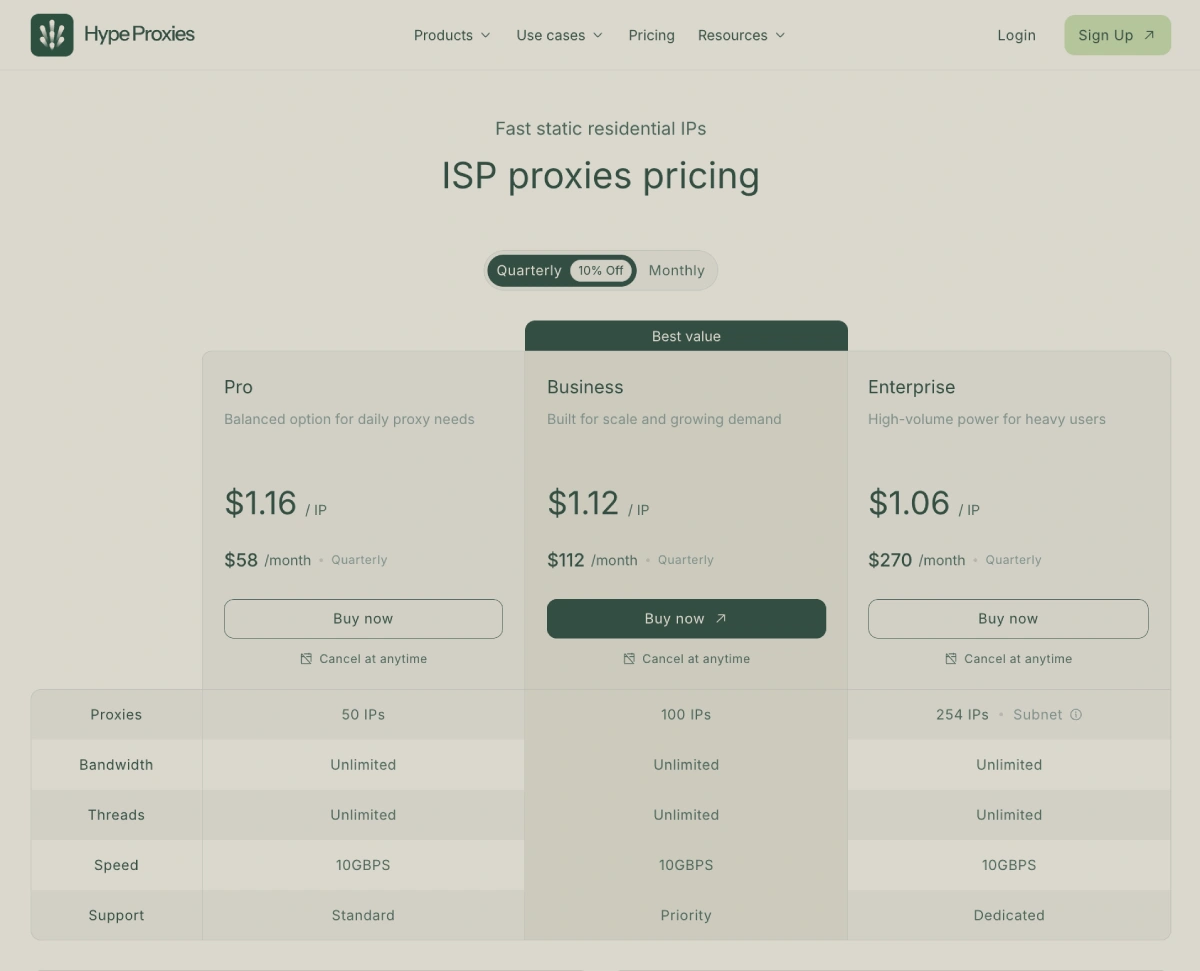
Navigate to hypeproxies.com/proxies/isp-proxies. This is the product page specifically for their static ISP proxies.
Step 2: Choose Your Plan
HypeProxies ISP proxy plans in 2026:
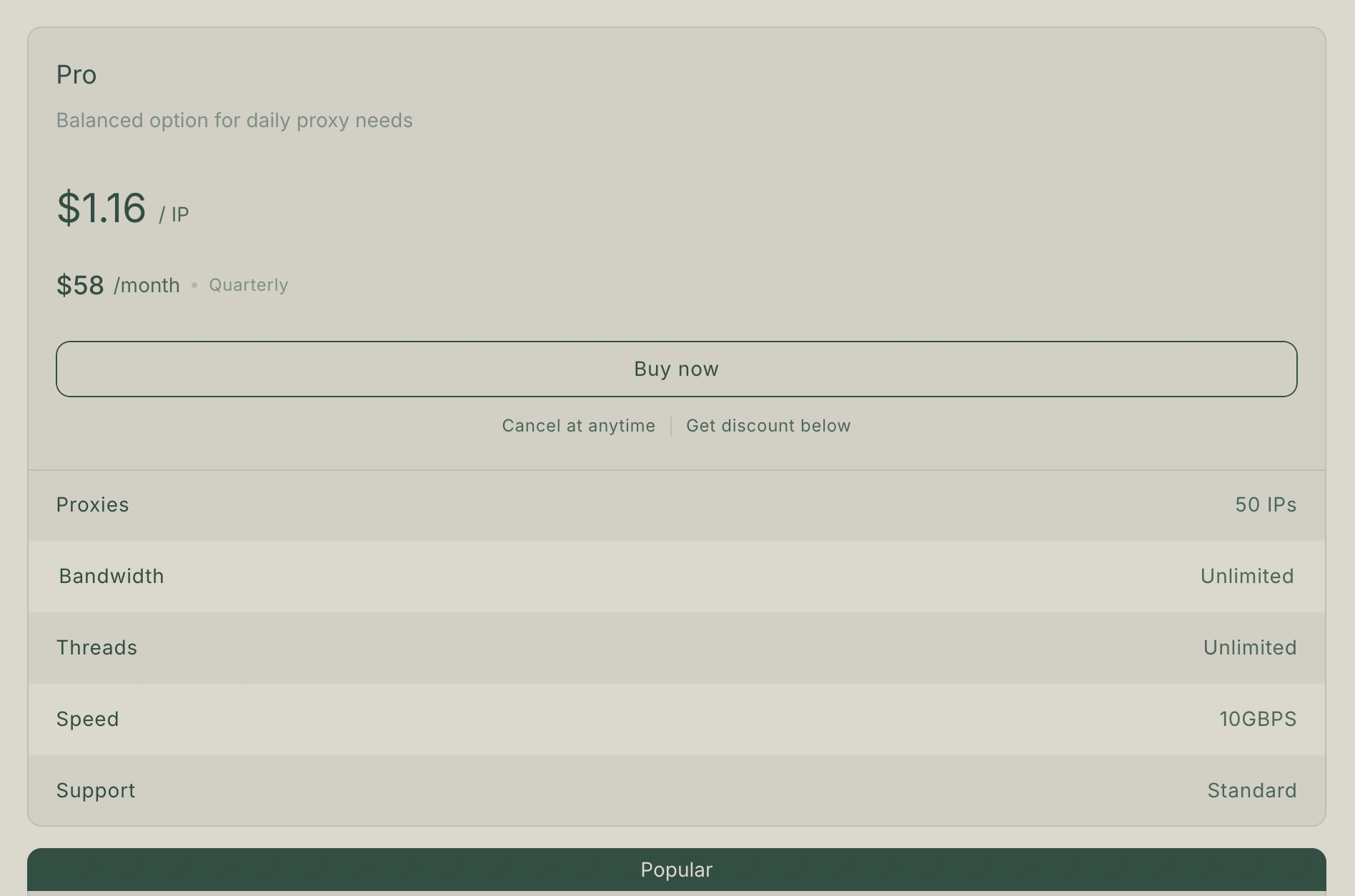
| Plan | IPs | Monthly | Quarterly |
|---|---|---|---|
| Pro | 50 IPs | $65/mo ($1.30/IP) | $58/mo ($1.16/IP) |
| Business | 100 IPs | $125/mo ($1.25/IP) | $112/mo ($1.12/IP) |
| Enterprise | 254 IPs (/24 subnet) | $300/mo | $270/mo |
All plans include unlimited bandwidth, unlimited threads, and 10Gbps connection speed.
If you're starting with Incogniton's free plan (10 profiles), the Pro plan gives you 50 IPs — more than enough to assign a unique IP to every profile and leave room to grow.
Step 3: Click "Buy Now" and Create Your Account
Click Buy Now on the plan you've selected. If you already have a HypeProxies account, log in. If not, create an account with your email address.
Step 4: Complete Payment
HypeProxies accepts major payment methods including crypto. Your ISP proxy access is typically provisioned within a few minutes of payment.

Exclusive 10% Off Any HypeProxies Plan
Use coupon code PROXYGRAPHY10 at checkout for 10% off any HypeProxies plan before completing your purchase.
Step 5: Access Your Dashboard and Retrieve Credentials
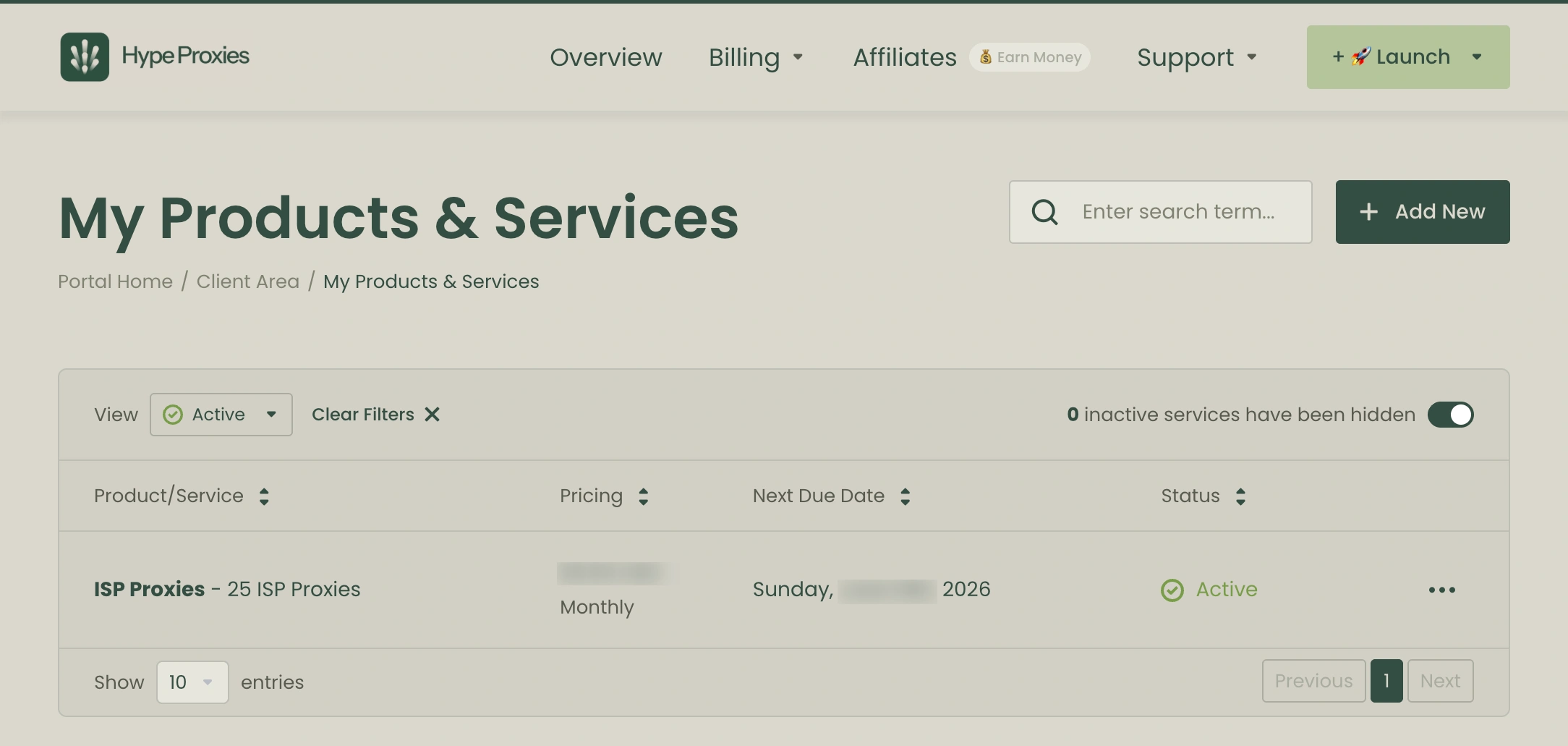
Log in to your HypeProxies dashboard and navigate to your active ISP proxy order. You'll find a list of proxies, each with:
- Host (IP address, e.g.
198.51.100.42) - Port (e.g.
10000) - Username
- Password
- Supported protocols: HTTP, HTTPS
Each row in the list is a separate static IP you can assign to a distinct Incogniton profile. Copy a proxy's credentials — you'll enter them in Part 2.
The format you'll be working with looks like:
http://username:[email protected]:10000
Part 2: Setting Up HypeProxies in Incogniton
With your proxy credentials ready, open the Incogniton desktop app. The following steps apply whether you're adding a proxy to a new profile or editing an existing one.
Step 1: Open Incogniton and Click "New Profile"
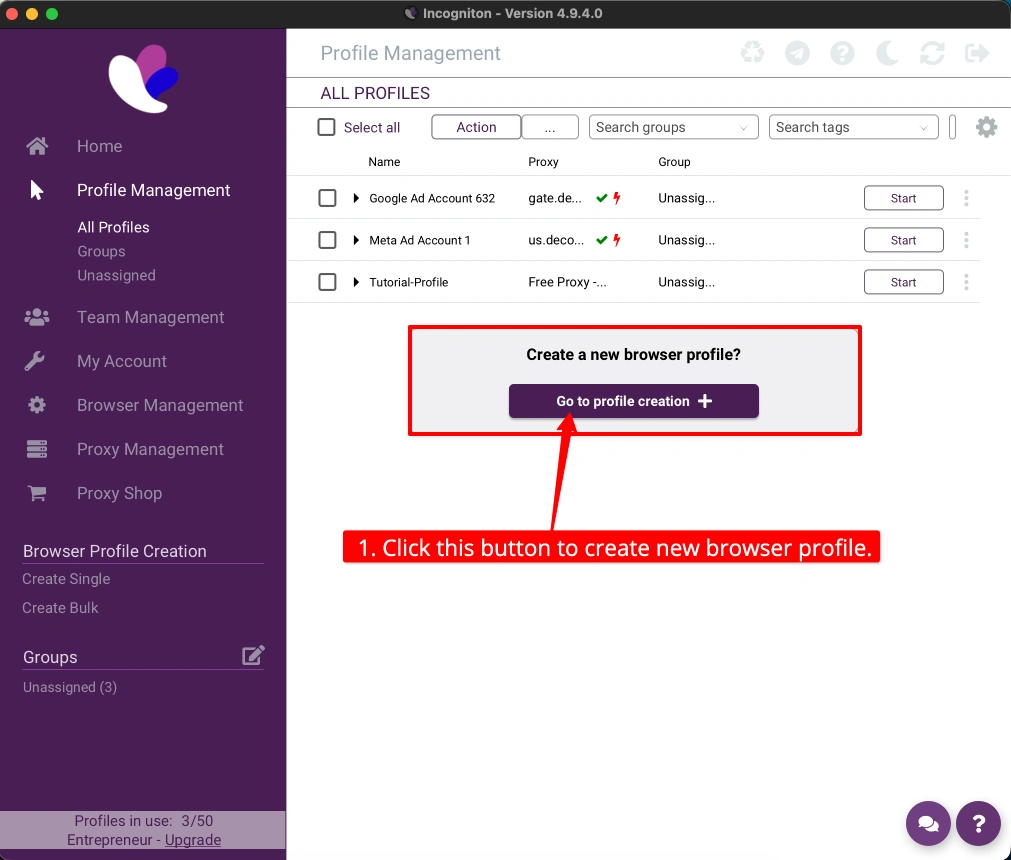
In the main Incogniton dashboard, click New Profile (or Create Profile depending on your version). This opens the profile configuration panel.
Step 2: Navigate to the Proxy Tab
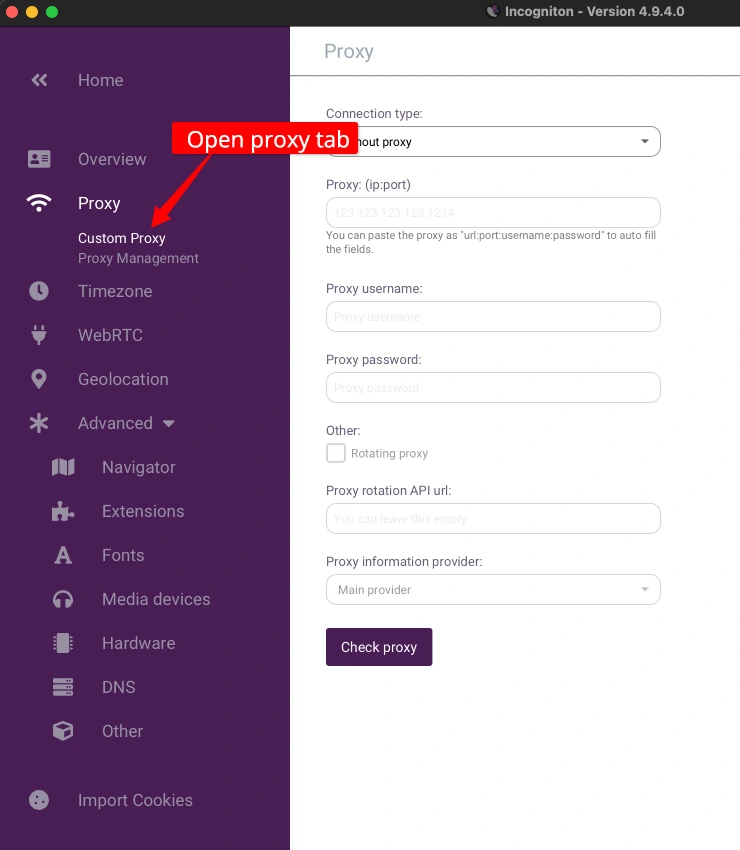
Inside the profile creation screen, find the Proxy tab in the left sidebar or top tab bar. Click it to open the proxy configuration section.
Step 3: Select the Proxy Connection Type
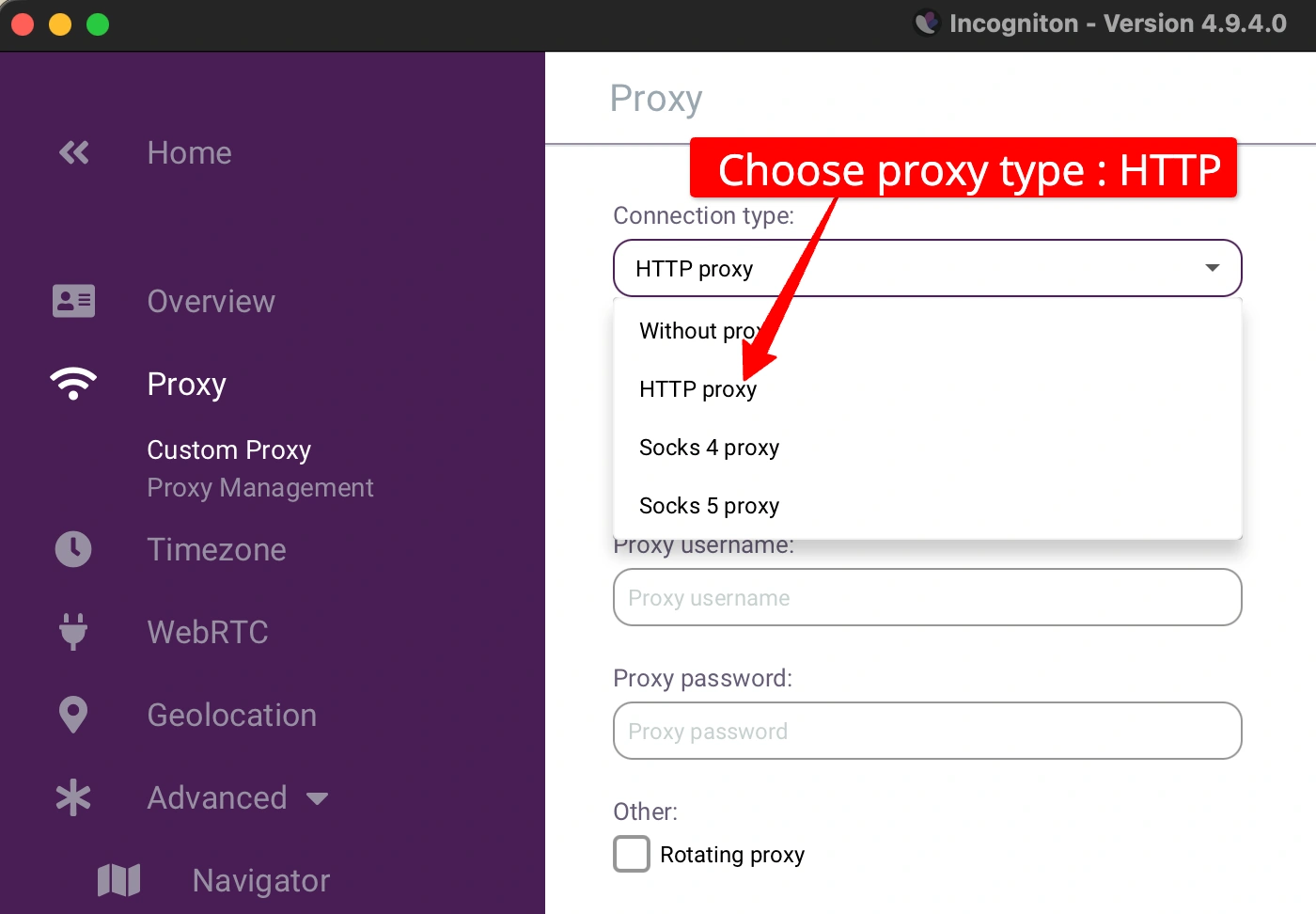
Under Proxy Type, select HTTP or HTTPS. HypeProxies ISP proxies support HTTP and HTTPS protocols.
Step 4: Enter the HypeProxies Credentials
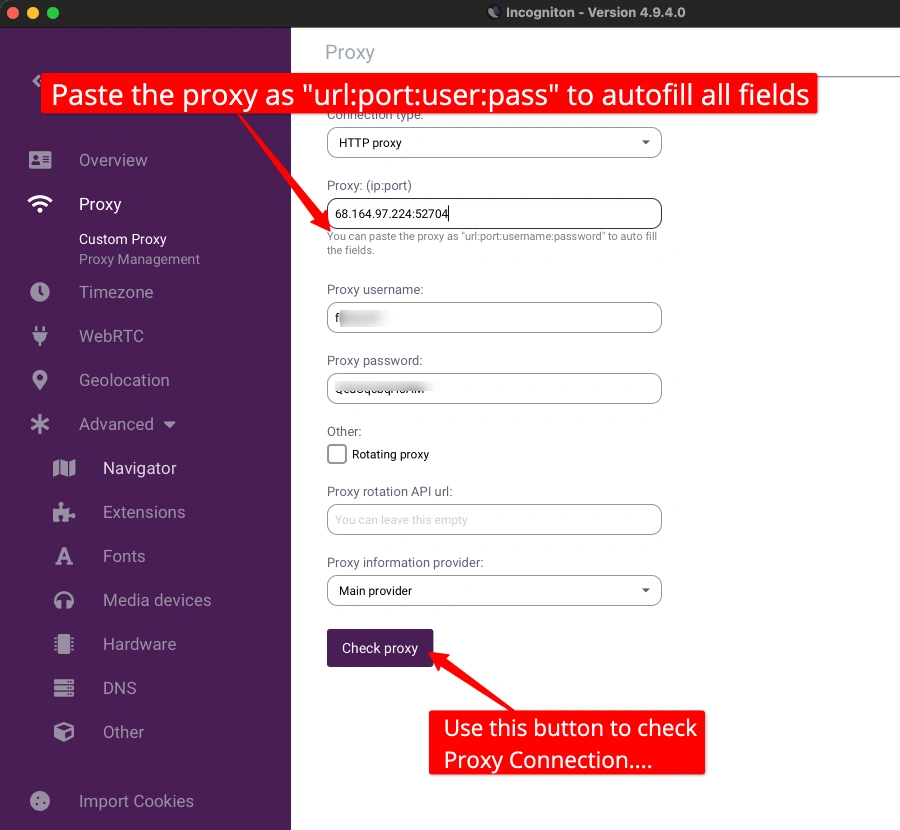
Fill in the four fields using the credentials from your HypeProxies dashboard:
| Field | What to Enter |
|---|---|
| Proxy Host | The IP address (e.g. 198.51.100.42) |
| Port | The port number (e.g. 10000) |
| Username | Your HypeProxies proxy username |
| Password | Your HypeProxies proxy password |
Make sure there are no extra spaces before or after any value — this is a common cause of connection failures.
Step 5: Click "Check Proxy"
Click the Check Proxy button. Incogniton will send a test request through the proxy and return the detected IP and location.
Step 6: Confirm the Proxy Check Shows a Residential Location
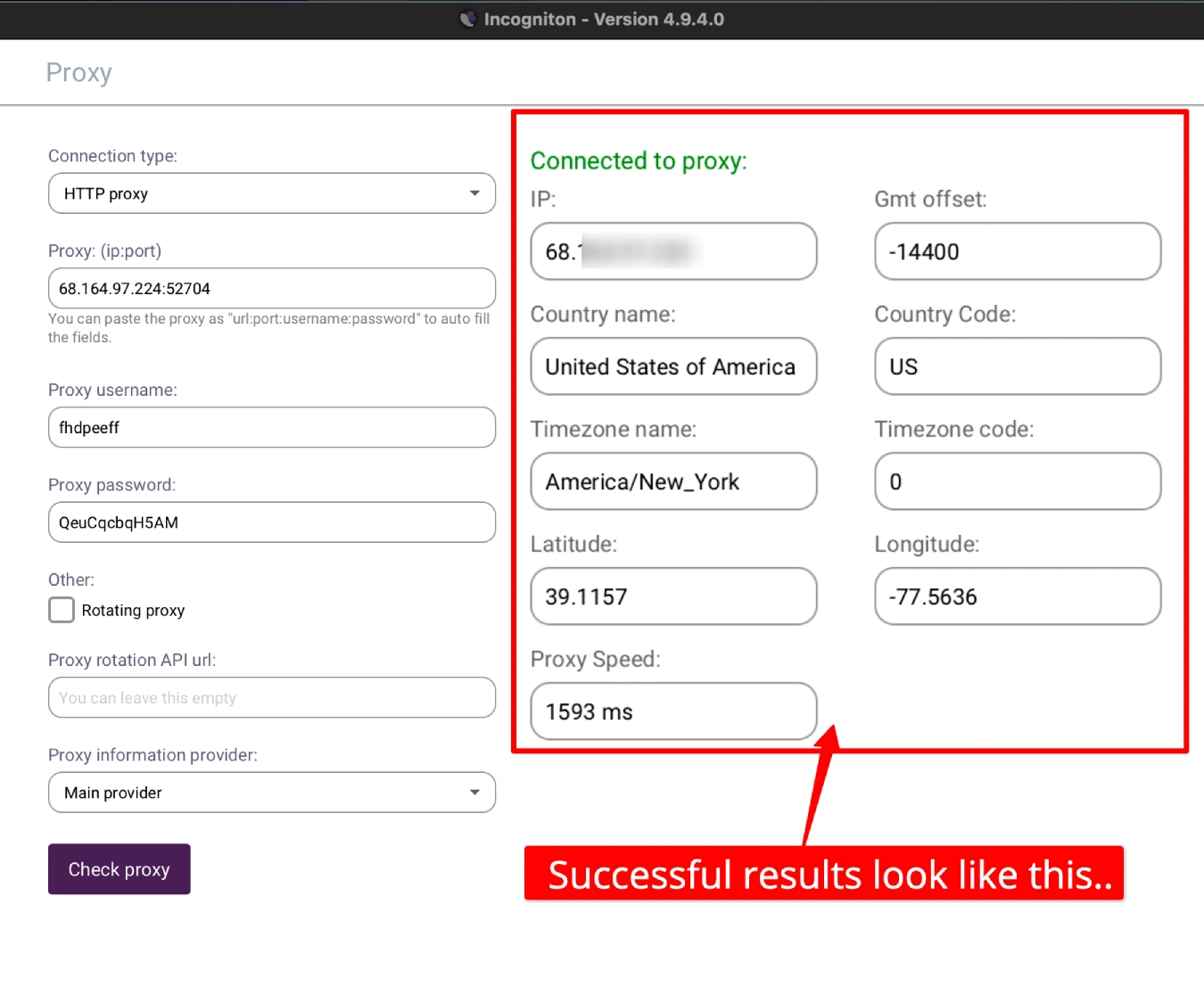
A successful proxy check shows:
- The IP address matches the one assigned by HypeProxies
- The ISP is a residential internet provider (e.g. Comcast, AT&T, Verizon — not a datacenter name)
- The country and city match the location you need for that account
This residential ISP label is what sets HypeProxies apart from datacenter proxies. Platforms see a real ISP-registered IP, not a server IP from a cloud host.
Step 7: Save and Start the Profile
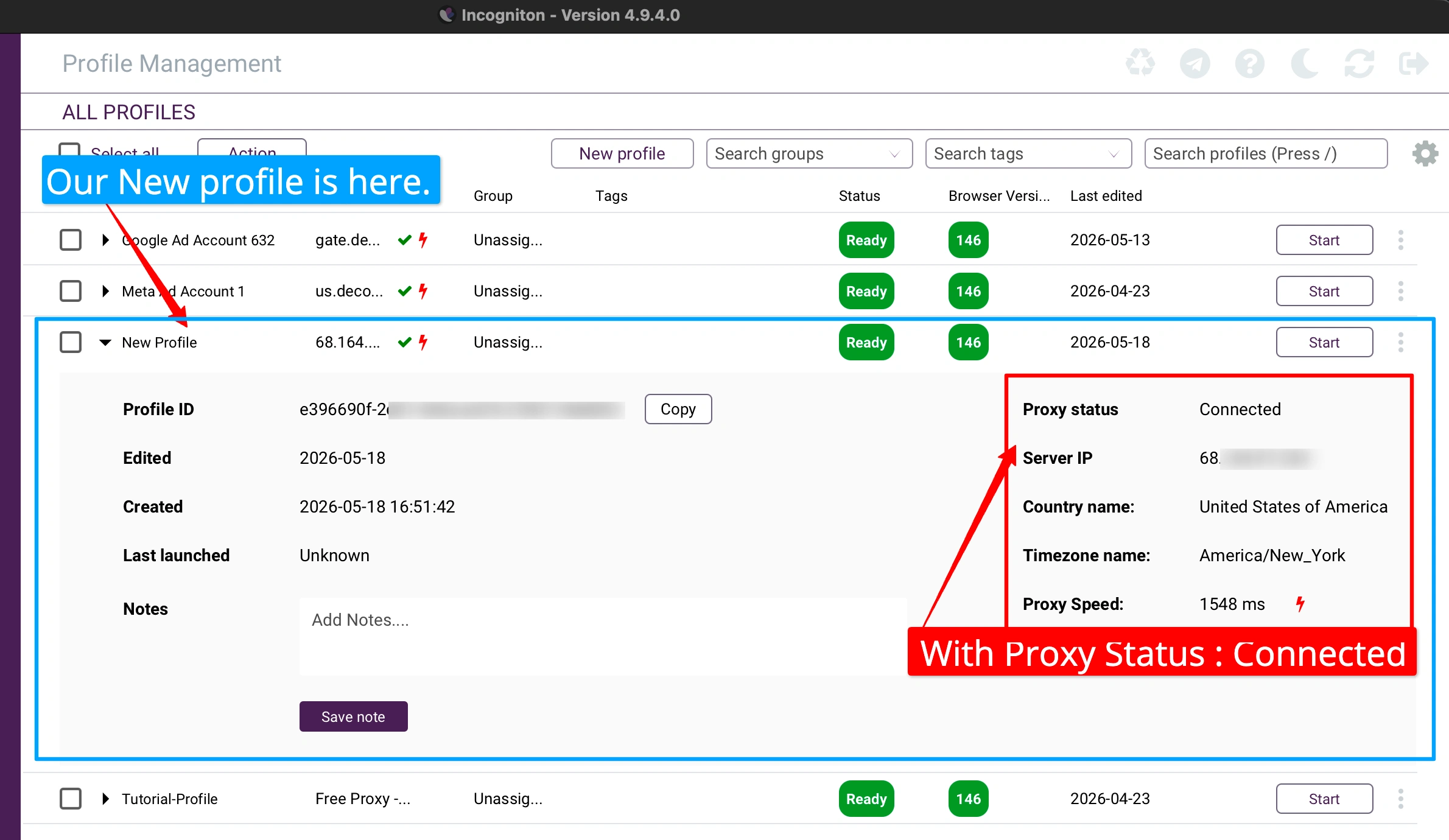
Click Save to finalize the profile, then click Start to open the browser. All traffic from this profile will route through the HypeProxies ISP proxy you assigned.
Step 8: Repeat for Each Additional Profile
Go back to the Incogniton dashboard and create a new profile. Assign a different HypeProxies IP to each profile. Never reuse the same IP across multiple profiles — that defeats the purpose of isolation.
Why ISP Proxies Beat Other Proxy Types for Incogniton
Choosing the wrong proxy type is the most common mistake in multi-account setups. Here's how the options compare:
| Proxy Type | Static IP | ISP Registered | Detection Risk |
|---|---|---|---|
| Datacenter | Yes | No | High — flagged immediately |
| Rotating Residential | No | Yes | Medium — IP changes look suspicious |
| ISP Proxies (Static Residential) | Yes | Yes | Low — mimics a real home user |
Datacenter proxies are cheap but their IP ranges are publicly known. Most major platforms block them outright.
Rotating residential proxies use real ISP IPs, but the IP changes on every connection or every session. For accounts that are supposed to belong to a real person, an IP that never appears twice is a red flag.
ISP proxies combine the best of both: they're registered to real internet service providers (so they pass ISP-detection checks), but each IP is fixed (so the same account always logs in from the same location). HypeProxies specifically hosts these on 10Gbps infrastructure, so you get datacenter-level speed with residential-level trust signals.
For 2026's platform detection systems — which have gotten considerably more sophisticated — this combination with a properly configured Incogniton profile is one of the most reliable setups available. See our best ISP proxies roundup if you want to compare other providers before deciding.
Best Practices for Multi-Account Management
Follow these guidelines to keep your accounts safe after the initial setup:
- One IP per profile, always. Assign a dedicated HypeProxies IP to each Incogniton profile and never swap them around.
- Use HTTPS over HTTP where available — it encrypts your proxy traffic for better privacy.
- Match proxy location to account location. If an account was created in the US, use a US-based ISP proxy. Logging in from a different country is a common trigger for account flags.
- Sync the timezone in Incogniton with the proxy country. Incogniton lets you set the timezone per profile — make sure it reflects the proxy's geographic region.
- Avoid mixing tools. Run each Incogniton profile in its own session and don't switch proxies between sessions unless you have a deliberate reason.
- Test before using for critical accounts. Use the built-in proxy check and visit
browserleaks.comfrom within the profile to confirm your WebRTC, IP, and timezone are all consistent.
Troubleshooting Common Issues
"Proxy check failed" in Incogniton Double-check that the host, port, username, and password are entered exactly as shown in the HypeProxies dashboard. No trailing spaces, no extra characters. If credentials look correct, try switching between HTTP and HTTPS in the proxy type dropdown.
Slow browsing speed inside the profile ISP proxies on HypeProxies run on 10Gbps servers — slowness usually points to network routing, not the proxy itself. Try switching to an HTTP connection type, or contact HypeProxies support via their Discord for location-specific recommendations.
WebRTC IP leak showing real IP Incogniton has WebRTC settings in each profile's configuration. Open the profile settings, find the WebRTC section, and set it to "Replaced" or "Disabled" depending on your preference. "Replaced" uses the proxy IP, which is the correct behavior for most use cases.
Account flagged despite proxy setup The issue is usually not the proxy — it's inconsistent fingerprinting. Check that the Incogniton profile's OS, screen resolution, language, and timezone all match the proxy's geographic location. Platforms cross-reference these signals against the IP's expected profile.
Is This Setup Worth It?
If you're managing more than a handful of accounts for social media marketing, affiliate campaigns, or e-commerce, the combination of Incogniton and HypeProxies ISP proxies is a solid, cost-effective setup. Incogniton's free plan covers 10 profiles with no time limit, and HypeProxies' $1 trial lets you test the proxy quality before committing.
The 1:1 ratio of unique IP to unique browser profile — with static residential IPs that platforms can't distinguish from real home users — is the right foundation for running accounts at scale without constant bans.
Read our full HypeProxies review for a detailed breakdown of the proxy quality, dashboard usability, and how it compares to other ISP proxy providers. And if you're still evaluating antidetect browsers, our best antidetect browsers guide covers the top options side by side.
FAQs
Can I use HypeProxies with Incogniton?
Yes. HypeProxies provides standard HTTP and HTTPS proxy credentials that work with any proxy-compatible application, including Incogniton. You enter the host IP, port, username, and password directly into Incogniton's proxy tab when creating or editing a profile.
Does Incogniton's free plan support proxy configuration?
Yes. All Incogniton plans — including the free tier — allow you to configure a proxy for each profile. The free plan supports up to 10 profiles, and each profile can have its own unique proxy assigned.
How many ISP proxies do I need for Incogniton profiles?
You need one unique ISP proxy per browser profile. If you're running 10 profiles on Incogniton's free plan, you need 10 distinct IPs. HypeProxies' Pro plan (50 IPs) gives you plenty of headroom to start and scale.
What proxy protocol works best in Incogniton?
HTTP or HTTPS is the protocol to use with HypeProxies ISP proxies in Incogniton. Select HTTP or HTTPS in the Incogniton proxy type dropdown and enter your host, port, username, and password from the HypeProxies dashboard.
How do I test if my proxy is working in Incogniton?
Use the built-in Check Proxy button in Incogniton's proxy configuration tab — it shows the detected IP, country, and ISP name. For a more thorough check, start the profile and navigate to browserleaks.com or ipleak.net to verify there are no WebRTC leaks and that the displayed IP matches your HypeProxies IP.